

Importing Data
Import data option can be enabled by setting import to true in set_actions, as mentioned below:
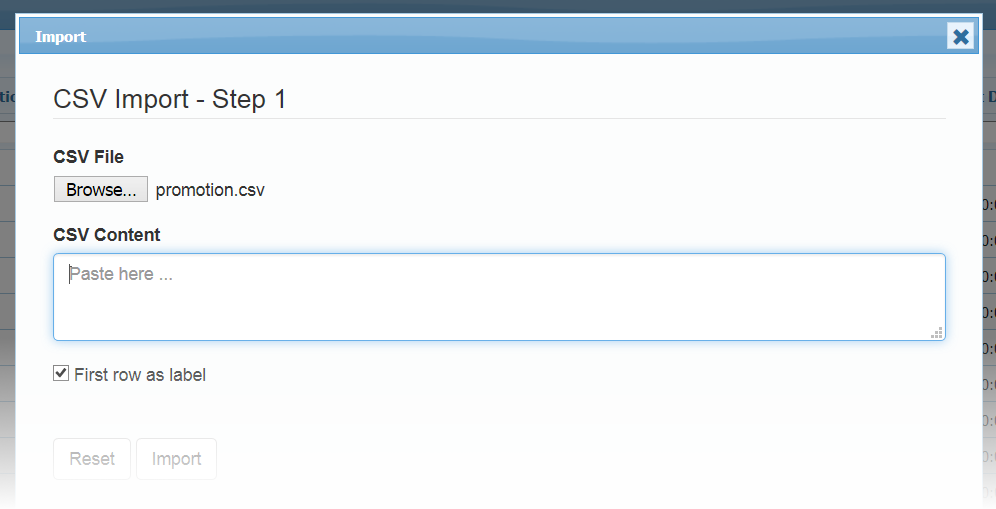
$g->set_actions(array( "add"=>true, "edit"=>true, "delete"=>true, "import"=>true, "search" => "advance" ) );Step1: Select File / Copy-Paste data from Excel
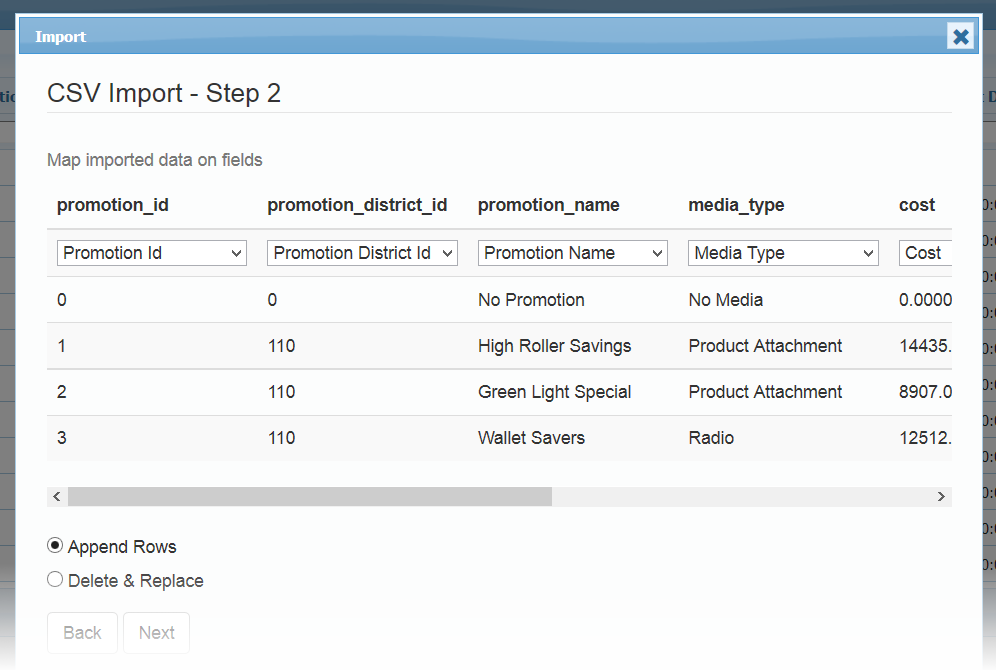
Step2: Map imported data on Database fields
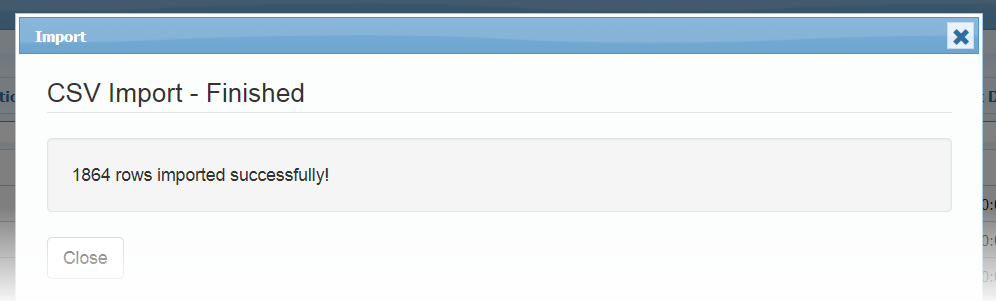
Step3: Finished
By default new rows are appended. If you want to show append or replace option on Step2, you can set:
$opt["import"]["allowreplace"] = true;$g->set_options($opt);If you want to adjust CSV headers and database fields mapping accuracy percentage, default: 80:
$opt["import"]["match"] = 95;$g->set_options($opt);If you wish to remove certain database fields in import mapping, e.g.
$opt["import"]["hidefields"] = array("client_id");$g->set_options($opt);To show import dialog on startup, set this code in loadComplete event. Here list1 is grid id.
$opt["loadComplete"] = "function(){ if(!jQuery.data(document,'runonce')) { jQuery.data(document,'runonce',true); $('td#import_list1').click(); } }";Resources
Section titled “Resources”See Live Demo
- You can check this demo in archive
demos/export/import.php