Multiple Subgrids at Same level

Hello everyone,

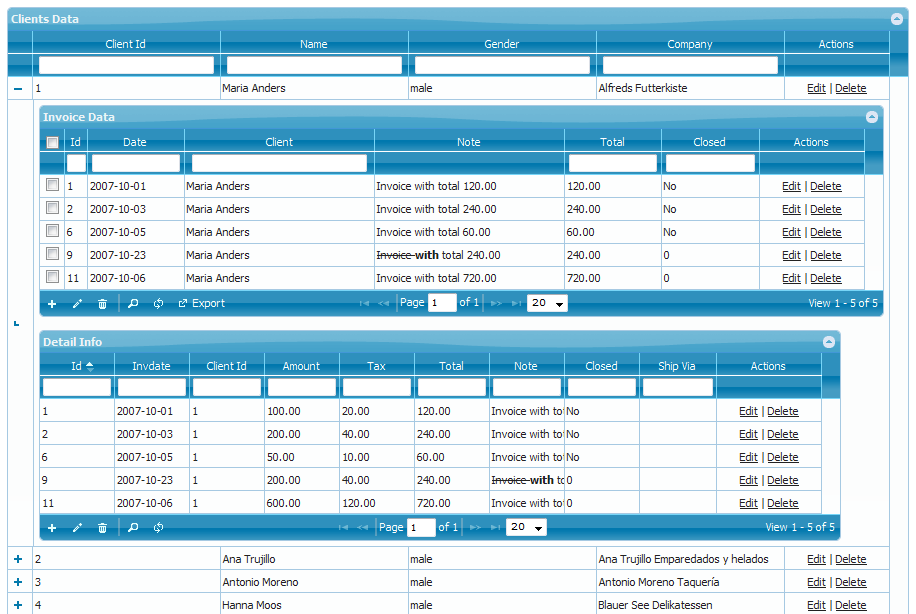
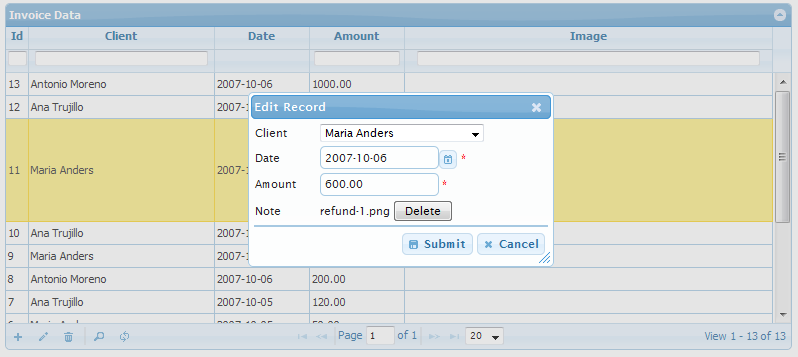
I just added a new feature, that allow you to have multiple subgrids at same level.
Usage is pretty easy, just define 2 grids as detail grid and it’ll be there when expanded.

Multiple subgrids at same level

Active licensed customers can request latest build & demo files via email ([email protected])
That’s all for now!

PS: New version update is coming next … stay tuned.

Custom Dialog Buttons, Multi-Column Grouping, Form Posting

New How-tos have been added based on our valuable customer’s feedback.

Q) How to add custom buttons in add/edit dialogs?
Q) How to post data using JS code?
Q) How to do grouping on more than 1 field?
Q) How to reload parent after new record added in subgrid ?
Q) How to mask a field, for example like this: (NN) NNNN-NNNN ? N stands for number.
Q) How to remove toolbar buttons for add/edit dialog and enable only inline editing?
Q) How to maintain vertical scroll position after grid reload?

Checkout the FAQ page for how-tos.

Bulk Operations in PHP Grid

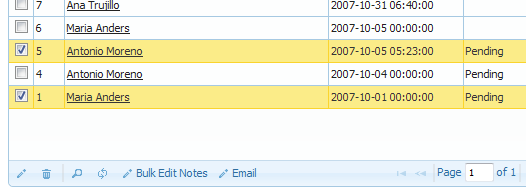
At instances, we wish to perform an operation on all selected rows at once. For e.g.
– Changing the Status from pending to approved for all selected rows
– Or you may want to send email to all selected records

For such cases, I’ve updated the library to enable the bulk update operations.

The usage is very simple indeed. It works with custom toolbar button along with on_update callback.


Paid customers can request latest build via email.

Column Level Access Control

I’ve added a most requested feature, after which we’ll have more control on the fields (columns) on grid. After that, grid can easily to integrated with any ACL (access control list).

1) If you want a column to be editable on ‘Add Record’ but readonly on Grid Listing and Edit dialog, Set it readonly, in editrules.

$col["editrules"] = array("readonly"=>true);
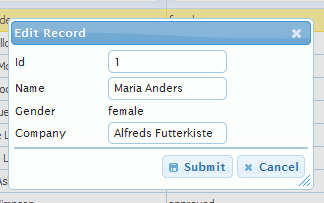


You can also set certain field readonly, when it contain some specific data
(e.g. when gender == male, make it readonly)

$col = array();
$col["title"] = "Gender";
$col["name"] = "gender";
$col["editable"] = true;
$col["editrules"] = array("required"=>true, "readonly"=>true, "readonly-when"=>array("==","male"));
$cols[] = $col;


2) You can also control which column to display in Grid Listing, View Dialog, Add Dialog and Edit Dialog. For such purpose set “show” attribute of column.

$col["show"] = array("list"=>true, "add"=>true, "edit"=>true, "view"=>false);


Complete example of column definition will be as follows.

$col = array();
$col["title"] = "Gender"; // caption of column
$col["name"] = "gender";
$col["editable"] = true;
$col["editrules"] = array("required"=>true, "readonly"=>true);
$col["show"] = array("list"=>true, "add"=>true, "edit"=>true, "view"=>false);
$cols[] = $col;

One can connect these setting in Application’s Access Control List to restrict several columns to display/hidden OR make them editable/readonly.

Paid customers can request latest build via email.

File Upload using PHP Grid

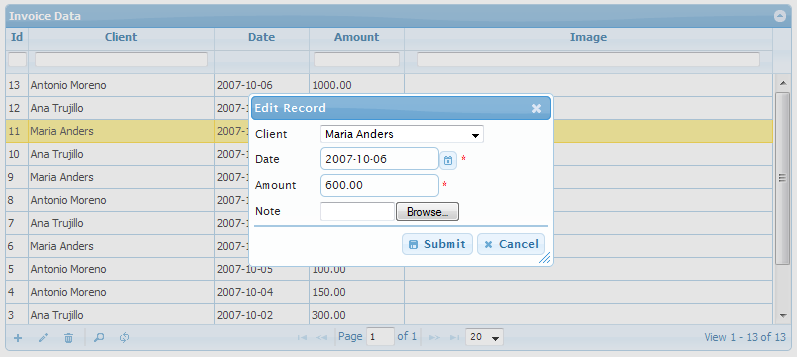
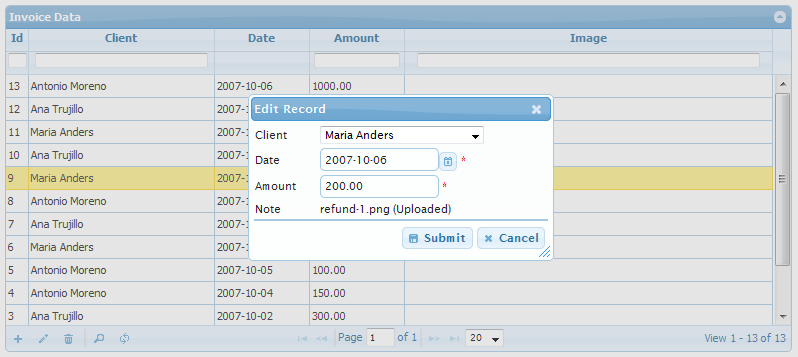
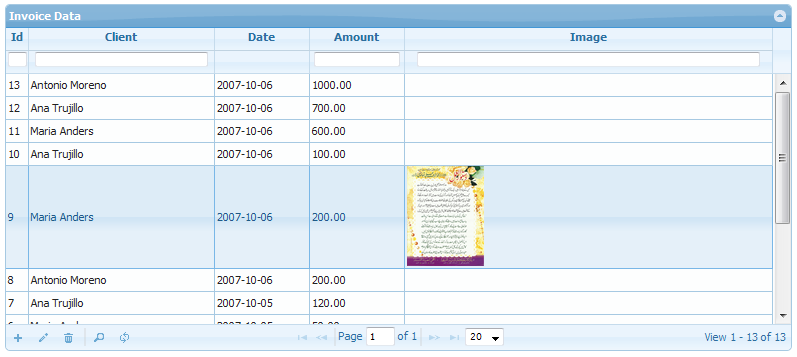
Most awaiting feature of File Upload support is added to the latest build of PHP Grid Control. With just little config settings, you can upload file to a folder on your server. You can also use on_insert / on_update callbacks to store the uploaded content in database or email as per your need.

Following settings are required to add with column definition to make it a upload input box.

$col[“edittype”] = “file”; // render as file
$col[“upload_dir”] = “temp”; // upload here

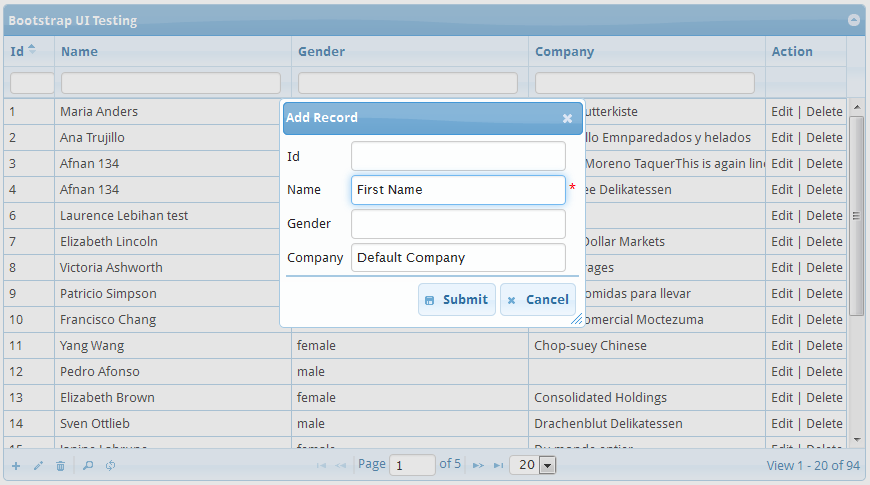
Step 1: Step 2: Step 3: You can also edit or delete existing uploaded file too.

For more help, see working example (demos/editing/file-upload.php)

This feature is currently offered as a part of premium package and onwards. Customers with active subscription (of upgrade) can get latest build via email request ([email protected]). Those whose subscription period has expired can renew the subscription by ordering again from Download.

Grouping Headers in PHP Grid

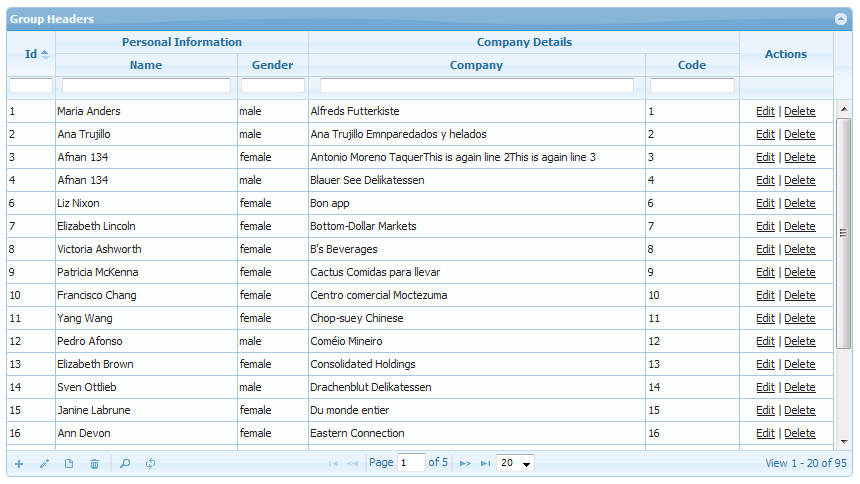
Now you can have a grouped headers in phpgrid control. It would help in categorizing your related columns. See screenshot.

The grid configuration is fairly simple, by calling following function with desired parameters.

// group columns header
$g->set_group_header( array(
		    "useColSpanStyle"=>true,
		    "groupHeaders"=>array(
		        array(
		            "startColumnName"=>'name', // group starts from this column
		            "numberOfColumns"=>2, // group span to next 2 columns
		            "titleText"=>'Personal Information' // caption of group header
		        ),
		        array(
		            "startColumnName"=>'company', // group starts from this column
		            "numberOfColumns"=>2, // group span to next 2 columns
		            "titleText"=>'Company Details' // caption of group header
		        )
		    )
		)
	);

This feature is part of premium version and onwards. Customers (with license) can get latest build by sending an email request at [email protected].

Column based Formatting

Hi,

Just added new formatting feature, Column Color Formatting, which enables you to set color and css style of some specific column of grid just like we do in excel.

// if nothing set in ‘op’ and ‘value’, it will set column formatting for all cell
$f = array();
$f[“column”] = “invdate”;
$f[“css”] = “‘background-color’:’#FBEC88′, ‘border-color’: ‘black’, ‘color’:’black'”;
$f_conditions[] = $f;

Autocomplete feature

I recently added autocomplete feature in PHP Grid control, which enabled the features like DB driven type ahead and autocomplete by database lookup query. Very useful if you have a dropdown with a lot of data coming from database and searching is only there by scrolling, you can simple plug that out and integrate autocomplete with same DB query.

Integration steps will be there in Docs.

Step1: Select ID and Data both in select command. (e.g. client_id, clients.name)

$g->select_command = "SELECT id, invdate, invheader.client_id, clients.name as cid, amount, note FROM invheader
INNER JOIN clients on clients.client_id = invheader.client_id
";

Step2: Place ID field in grid, editable but hidden.

// field that will be updated by autocomplete
$col = array();
$col["title"] = "client_id";
$col["name"] = "client_id";
$col["width"] = "10";
$col["editable"] = true;
$col["hidden"] = true;
$cols[] = $col;

Step3: Place DATA field in grid, with autocomplete formatter.

// normal textbox, with autocomplete enabled
$col = array();
$col["title"] = "Client";
$col["name"] = "cid";
$col["dbname"] = "clients.name"; // this is required as we need to search in name field, not id
$col["width"] = "100";
$col["align"] = "left";
$col["search"] = true;
$col["editable"] = true;
$col["formatter"] = "autocomplete"; // autocomplete
$col["formatoptions"] = array( "sql"=>"SELECT client_id, name FROM clients",
"search_on"=>"name",
"update_field" => "client_id");

It will search in passed SQL for autocomplete, and selection ID will be set in field client_id.